Close Window
<Enrollment>Tab
Once a student is registered, then an enrollment record must be created to complete the process. Upon completion, the student will be included in your schools total enrollment figures and also be available to track attendance, etc. (See Figure 7)
Enrollment means to define a date when the student is first going to be present or is first expected to be present in your District and/or Building for the current or upcoming Academic Year.
Each student will, at the very least, have one (1) District Enrollment Record, one (1) School Building Enrollment Record and one (1) Academic Year Enrollment Record.
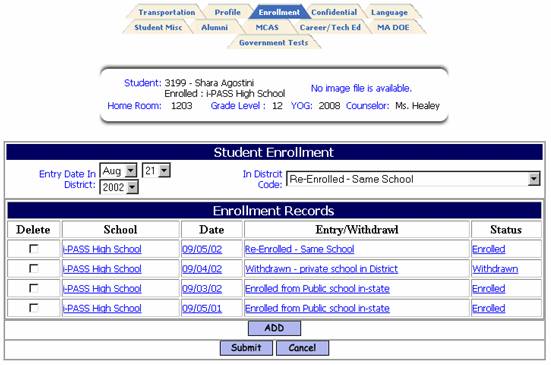
Figure 7
Enrolling a Single Student
Þ Go to <Biographical System> <Add/Modify Student Biographical> <Enrollment> tab.
Þ
Click the  button. (See Figure 8)
Helpful Hint!
Do not modify a student’s existing record, you must click the add button and create a new entry or withdrawal enrollment record for the student.
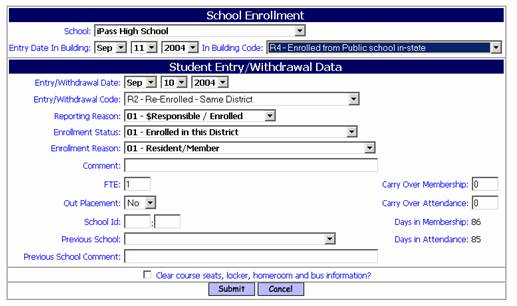
Figure 8
After registering a new student you may:
Create their Enrollment Record immediately for the first day that you expect them to be in attendance in your building;
Helpful Hint!
It is strongly recommended that you do not enter an Enrollment Record for the upcoming Academic Year at the time you are registering a new student (into Kindergarten or Pre-school for example) if it is prior to your mass enrolling all students for a new school year. This option is suggested for students who will be present in the next day or two for the current Academic Year, although it may be better to wait until they actually show up.
1) wait and enter their Enrollment Record when they first arrive in your building
2) mass enroll them later with other students (see Mass Enroll Students).
If the student is not Enrolled immediately upon registering them, then access to any of their information requires that you select the None option for Enrollment on the Student Selection Filter page.
|

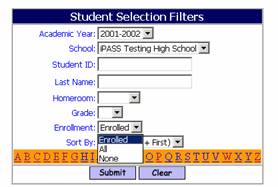
Figure 9
District Enrollment Date
If the student is new to your District and School:
This date should be the date the student was first in attendance in your District. This date is not used or reported at this time, but i PASS will be developing a report that uses this date to determine how long a student has been enrolled in your District (basically for MCAS and other test result analysis along with how long a student has been in your building).
If the student is transferring in from another school within your District:
Þ Do not change this date.
Þ
Click  to save your changes
Add a new Enrollment Record
NOTE: The procedures for this Step are the same regardless of whether the student is Enrolling in your school from inside or outside of your District.
Þ
Click  to access a new
record
to access a new
record
School Enrollment:
These fields deal with the student’s Enrollment Record, in this case entry, into your School Building.
School:
Þ Accept the default of your default school.
Þ If your District has a central Registration and Enrollment Office, then this value may need to be changed to show the name of the school the student will be attending.
Entry Date in Building: <today’s date>
Þ Click on the default date of today or enter the date that the student was first in attendance in your building.
In Building Code:
Þ Select the correct Entry Code from the pull-down list.
Student Entry/Withdrawal Data – (Academic Year Enrollment)
Þ These fields deal with the student’s Enrollment Record, in this case Entry, into your School Building for the current Academic Year.
Entry/Withdrawal Date: <today’s date>
Þ Click on the default date of today or enter the date that the student was or is expected to be first present in your school for this Academic Year.
Entry/Withdrawal Code:
Þ Select the Entry Code from the pull-down list.
Reporting Reason:
Þ Select the correct Code from the pull-down list.
Enrollment Status:
Þ Select the correct Code from the pull-down list.
Enrollment Reason:
Þ Select the correct Code from the pull-down list.
Comment:
Þ Enter any comment you wish, such as where the student came from.
FTE (Full Time Equivalency): <1>
Þ Accept the default of one (1) if the student is a full-time student and enrolled 100% of the time in your school. Enter the decimal value that represents the amount of time a part-time student is enrolled in your school. This field is not based on a student’s possible participation in Special Education.
Out Placement: <No>
Þ Accept the default of No if this student is not Out-Placed to a facility out of your School and/or District as defined by your District and the DOE.
School Id:
Use this for only Out of District Students.
Þ Enter the state defined code for the School they are attending.
Þ All enrolled students should have this field blank.
Helpful Hint!
School ID will come directly from the District and School Profiles located in <Administration> <District Recourses><District Profile> and <Administration> School Resources><School Profile>
Previous School:
Þ Select the school from the pull down list of Out of District Schools that the student is coming from or leave the field blank if they are coming from a school in your district.
Previous School Comment:
Þ Enter the name of the Previous School if it is other than a school in the pull down list.
Helpful Hint!
You may add additional Out of District Schools in <Administration><School Recourses><School Profile>. We suggest that you only list schools that regularly send students to your school. Create generic Out of District School named “See File” for other schools and identify the school on the “Pervious School Comment” field.
Carry Over Membership:
Þ Enter the Days in Membership that a student accrued in a school within your District that is not using i PASS or is not in the same database.
Þ If i PASS is a K-12 database for your District, then this field is not used.
Carry Over Attendance:
Þ Enter the Days in Attendance that a student accrued in a school within your District that is not using i PASS or is not in the same database. If i PASS is a K-12 database for your District, then this field is not used.
Days in Membership:
Þ This is a calculated field.
Days in Attendance:
Þ This is a calculated field.
Þ
Click to save your changes
Withdrawing a Single Student
Under <Biographical System> <Add/Modify Student Biographical> <Enrollment> tab.
Helpful Hint!
Do not modify a student’s existing record, you must click the add button and create a new withdrawal record for the student.
If a student is withdrawing and transferring from your school to another school within your district
i PASS, then you must also change the students “Primary School” as defined under <Biographical System> <Add/Modify Student Biographical> <Profile> tab. After withdrawing the student, notify the receiving school so that they can add the new Enrollment/Entry record. Remember to click submit and save your changes.
Add a new WITHDRAWAL Record
Under <Biographical System> <Add/Modify Student Biographical><Enrollment> tab.
Þ
Click to create a new
record
School Enrollment:
Do not change these values. These will be changed by the receiving school.
School:
Entry Date In Building:
In Building Code:
Student Entry/Withdrawal Data – (Academic Year Enrollment)
These fields deal with the student’s Enrollment Record, in this case Withdrawal, out of your School Building and out of district for the current Academic Year
Entry/Withdrawal Date: <today’s date>
Þ Accept the default date of today or enter the first date that the student will NOT be in attendance in your school for this Academic Year.
Entry/Withdrawal Code:
Þ Select the correct Code from the pull-down list.
Reporting Reason:
Þ In most cases this Code will be the same Code that was used when the student was enrolled, it does not change. Select the correct Code from the pull-down list.
Enrollment Status:
Þ Select the correct Code from the pull-down list.
Þ If the student is transferring to another school within the District, then this Code will be the same Code that was used when the student was enrolled, it does not change.
Enrollment Reason:
Þ In most cases this Code will be the same Code that was used when the student was enrolled, it does not change. Select the correct Code from the pull-down list.
Comment:
Þ Enter any comment you wish, such as where the student is going.
FTE (Full Time Equivalency): <1>
Þ This field can be ignored. It does not apply to students who are withdrawing.
Out Placement: <No>
Þ This field can be ignored. It does not apply to students who are Withdrawing.
School Id:
Use this for only Out of District Students.
Þ Enter the state defined code for the School they are attending.
Þ All enrolled students should have this field blank.
Helpful Hint!
School ID will come directly from the District and School Profiles located in <Administration>District Recourses><District Profile> and <Administration> School Resources><School Profile>
Previous School:
Þ Leave this blank.
Previous School Comment:
Þ This field can be ignored. It does not apply to students who are Withdrawing.
Carry Over Membership:
Þ This field can be ignored. It does not apply to students who are Withdrawing.
Carry Over Attendance:
Þ This field can be ignored. It does not apply to students who are Withdrawing.
Days in Membership:
Þ This is a calculated field.
Days in Attendance:
Þ This is a calculated field.
Þ
Click to save your changes
Transferring a Student to a School within your District
Add a new TRANSFERRAL Record – under <Biographical System> <Add/Modify Student Biographical><Enrollment> tab.
Þ
Click to create a new
record
Entry/Withdrawal Date: <today’s date>
Þ Accept the default date of today or enter the first date that the student will Not be in attendance in your school for this Academic Year.
Entry/Withdrawal Code:
Þ Enter the “TRF” code for students transferring to another school within the District. This entry will insure that the student is only reported to the DOE from one school.
Reporting Reason:
Þ Since the student is transferring to another school within the District, then this Code will be the same Code that was used when the student was enrolled, it does not change.
Enrollment Status:
Þ Since the student is transferring to another school within the District, then this Code will be the same Code that was used when the student was enrolled, it does not change.
Enrollment Reason:
Þ Since the student is transferring to another school within the District, then this Code will be the same Code that was used when the student was enrolled, it does not change.
Comment:
Þ Enter any comment you wish, such as where the student is going.
Þ
Click to save your changes
Close Window